Import guide
How your platform exports get into P2P Dash: which file to download, what the import modes do, and what to do when something is not recognised.
How the import works
You download a file from the platform and upload it to P2P Dash. The import does the rest.
Upload the export
Download the transaction history from the platform, open that platform's page in P2P Dash and drop the file in. Before importing you see its date range and row count.

Transactions get sorted
Every row becomes a deposit, an interest payment, a fee, a repayment or one of the other types we know. Rows we don't recognise are flagged, not silently dropped.
See your numbers
The dashboard is ready as soon as the import finishes. For new months you upload a newer export later: overlapping days are matched, nothing is counted twice.
Rather watch?
In just under five minutes, our video explains which file you need, what happens during the import and what the four import modes do. At die-p2p-macher.de you can watch the import in full, run through with several platforms.
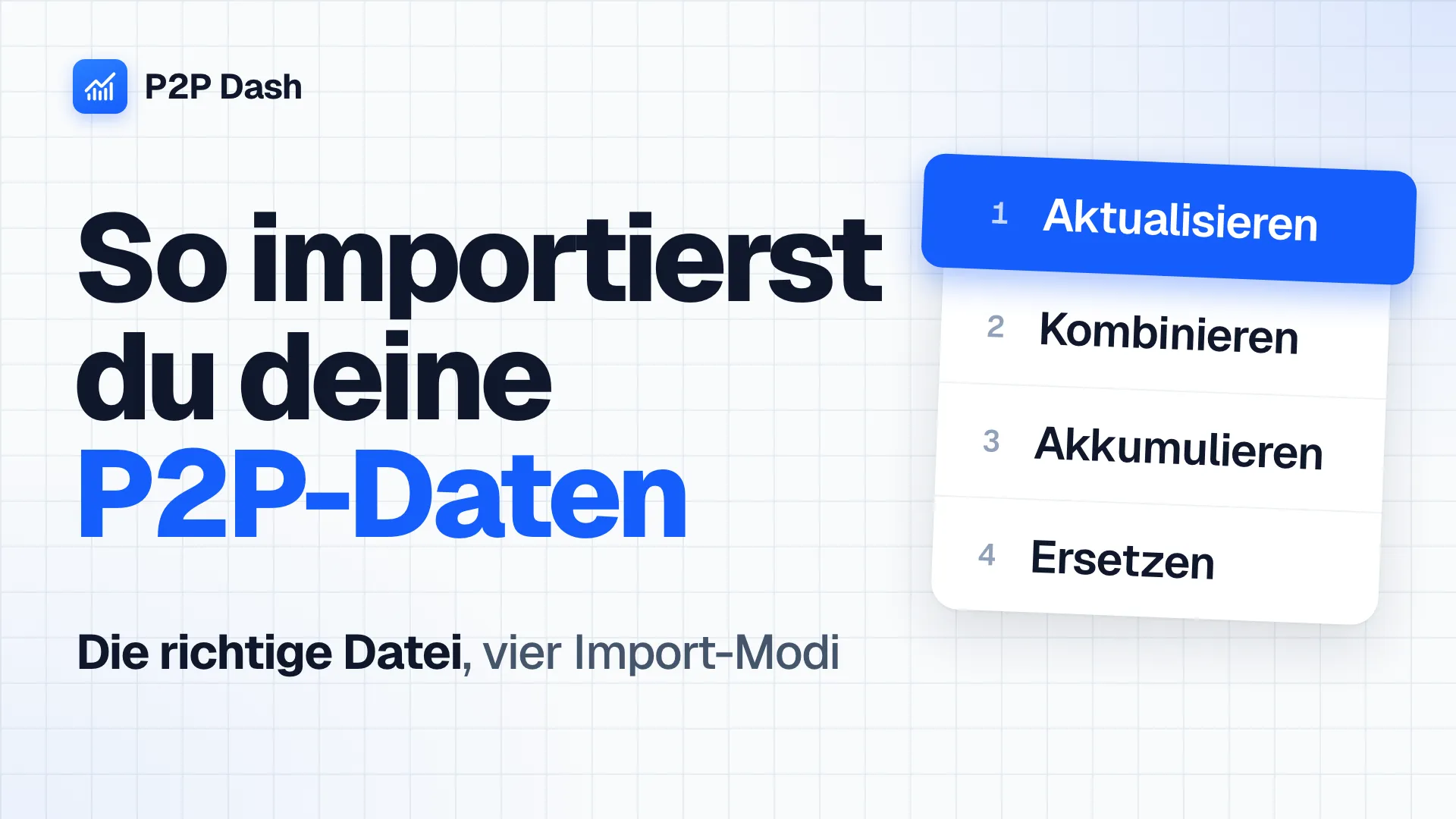
Import guide in five minutes
P2P Dash
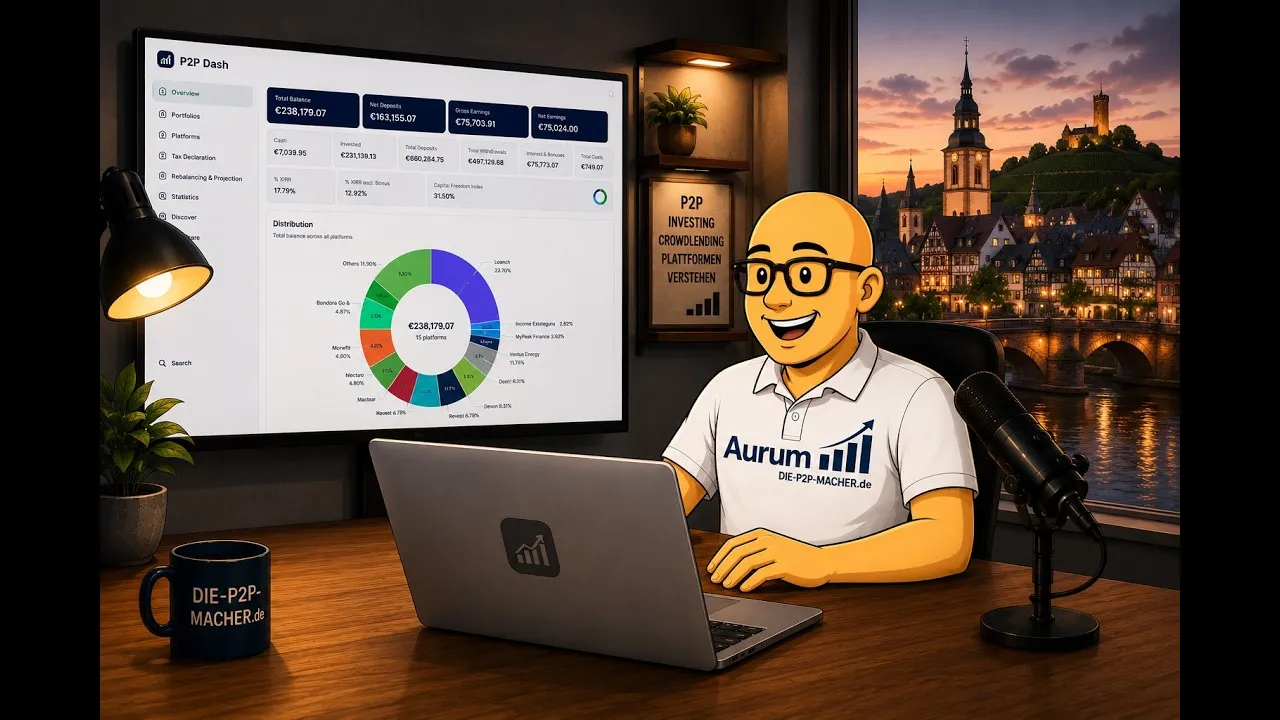
The import in full, with several platforms
die-p2p-macher.de
The right file
Almost every platform offers several exports. You need the one that lists every single transaction.
What you need
- The transaction history, one row per transaction
- Deposits, withdrawals, investments, interest, repayments, fees, taxes and bonuses
- As CSV or Excel (.csv, .xlsx, .xls), exactly as the platform delivers it
What you don't
- Portfolio or loan overviews
- Balance reports
- Monthly or yearly summaries
- Files that mix data from several platforms
Where to find it: The export is usually called “Account statement”, “Transactions” or “Transaction history”. Where exactly it sits on your platform is described on that platform's page in P2P Dash.
Best up to yesterday
Platforms book transactions throughout the day, so an export from today can be incomplete. If today is in there anyway, that's fine: on your next import, Update mode keeps the more complete version of every day.
When in doubt, English
We build the import for every platform with English exports first. Other languages follow one by one, but not everywhere yet. If your file isn't recognised, switch the platform to English and export again.
The four import modes
The mode decides what happens when a new file contains days you have already imported. Update is the default and almost always right.
Update (default)
- For each day, the version with more transactions stays
- On a tie, the newer import wins
Right for the monthly update, for older periods you add later, and for a day that was incomplete last time.
Combine
- Merges all files in the queue first
- Then matches days like Update
For several accounts on the same platform that you want to track as one, for example two Bondora Go & Grow accounts.
Accumulate
- Adds the new values to the existing ones
- No matching, no duplicate check
Only for data that definitely doesn't overlap with what is already there.
Import the same period twice and it counts twice.
Replace
- Replaces every day in the new file's date range
- Days outside that range stay as they are
For a period that is wrong and that you have exported again, for example a single month.
The previous data for that period is gone afterwards.
Your own template for everything else
For a platform P2P Dash doesn't support yet, or for transactions missing from an export: fill them into our template and import the file.
What matters
- Exactly three columns:
date,typeandamount, nothing else - Dates as YYYY-MM-DD, for example 2026-03-31
- Positive amounts, the type sets the direction. Negative only for corrections
- Import on the page of the platform the transactions belong to, or on the “Generic” platform
Allowed types: interest, principal repayment, investment, deposit, withdrawal, fee, tax, bonus, default loss, internal transfer. The template has an example for each.
Google Sheets. Make a copy to fill it in.
When something goes wrong
The most common messages during an import and what helps.
File format does not match the selected platform
The file doesn't match the format we know for this platform.
- Are you on the right platform's page?
- Is it the transaction history and not a portfolio overview?
- Switch the platform to English and export again. Not every language is built in yet.
Unknown transaction types detected
Some rows have a transaction type the import doesn't know yet. Everything else imports as usual.
- The unknown types are stored without any link to your account, so we can add them.
- Keep the file. Once the type is supported, import it again.
Today's figures are missing or too low
The export was from today, and the platform hadn't booked everything yet.
- Tomorrow, import an export that covers that day in Update mode. It keeps the more complete version of every day.
My platform is missing
Send us an export and we build the import for it. Until then, put the transactions into your own template.
Ready to import?
Create a free account and upload your first export. Your numbers are there as soon as the import finishes.
Create free accountFree to use • No platform login needed • First import in a few minutes